|
Operator Manual v1.08
|
||||||||||||||||||||||
About Digital Snooker Scoreboard(DSS)
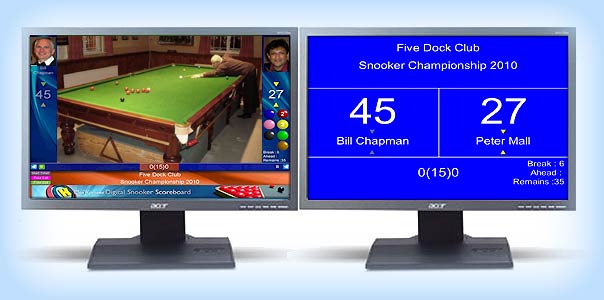
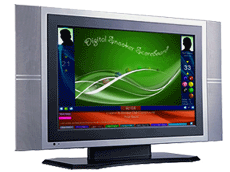
DSS is an exciting product with many features, including support of live video feed as its background (with the use of a compatible USB web camera or digital handycam), and it can even annouce the score to you with a third-party Text-to-Speech Engine! You can easily add up to 2 players' photos, or take an instant snapshot of the players if you have a web cam. Other DSS features include shot timer, calculation of scores' difference, fouls, free balls and display of maximum remaining points on table. For casual games at home or clubs, just run DSS on a laptop so you and your mate can check out the game's progress, and for competitions in a larger venue, you can connect a video projector or large-screen plasma TV to your PC so audience can view the match info from distance.
(If you are viewing this page when your PC is offline, some download links below may not work as Internet is required for downloading.)
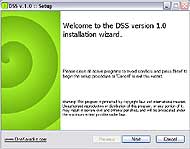
Installing Digital Snooker Scoreboard (DSS) is simple. Just run the setup program and follow the prompts. All core files require to run DSS are installed. DSS also supports TTS (Text to Speech) through certain third party programs. If you wish to have DSS speak the scores & messages through your PC speakers, download the additional files provided in the next section.
All our products are safe and are free of virus, malware, adware, etc - 100% guaranteed. We have a strict privacy & spam free policy to protect our visitors and customers. Most recent PCs support a range of high resolution displays, we recommend users to set the display to SXGA Display (1024x768 pixels) when using DSS for full screen presentation. Also, the task bar located at the screen's bottom on most Windows desktop may obscure the DSS's interface, so users should set the task bar's properties to "auto-hide" and uncheck "Keep the taskbar on top of other windows". The unregistered copy of DSS is for your evaluation only, for this reason it has several limtations:- Inability to save, open and create new matches, a running time limit of about ten minutes and a trial period. Otherwise all functions and facilities are available for trial. By installing DSS you agree to the Terms and Conditions.
To install Simple TTS Reade just run the setup program and follow the instructions. After installation double click its shortcut on your desktop (called "Simple TTS Reader") and see if it runs ok. It should have its own window and you can press the "Test" button to listen to a sample phrase. If it gives you an error mentioning the lack of to .Net framework then your PC needs the .Net framework installed, download from here. After .Net installation is completed you should be able to run Simple TTS Reader without problem.
The voices that come with Simple TTS Reader are minimal and a bit grainy, you may wish to download and install more voices here.  back to top back to top
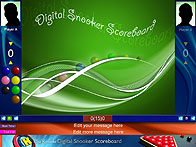
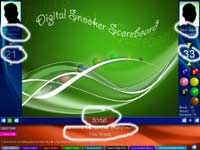
There are 2 players/teams with respective scores distributed in Left and Right Columns. The Top Centre Poster Area (800Wx600H pixels)is used to display poster graphics (such as logos, posters etc) or or live video feed when in camera mode. The Bottom Pane (1024Wx168H pixels) shows the match status, game titles/info and some special function buttons. These background graphics (located in the Xtras folder) can be replaced by your own design to provide a completely different look. There is also a banner running across the bottom of the screen, again it can be replaced by your own graphics (such as sponsorship names, logos, etc). This banner is normally visible until it is touched by your mouse pointer, when it happens the banner will disappear temporary & expose the buttons underneath it. These buttons provide some important functions of DSS and will be explained in later sections. In a typical match, the 2 players/teams play over a number of frames (e.g. 9 frames) and it normally start with the 1st frame, so the match status read 0(15)0, as in Everytime DSS is launched a new match is created. Or you can load a previous (e.g. unfinished) match to continue. You can even load a pictures of the players into DSS, if they don't have pictures ready, DSS has a built-in snapshot station to take snapshots of the players (this feature requires a connected camera and DSS must run in Camera Mode). A person will enter the scores as the game progress. This person can be the player himself, his opponent or referee or commentator, etc. Points are added to the player (during successful potting) or to his opponent (during foul). In some games there are handicap system by offering a player some points to start (or even some frames to start), these biases are allowed in DSS. In some matches where cueing are to be timed, DSS includes a mnaual timer to time the shot cueing as needed, and alert the player as the time runs out. back to top
When DSS is launched, you will be asked to choose between Normal Mode or Camera Mode.
Warning: Unless you have a properly installed camera attached to your PC, choose Normal Mode. Then you will enter the DSS interface. A new match is automatically created. The Left player will break For each match, you can edit the text about the match by moving the mouse to the screen bottom and click the You can always add pictures of the players by clicking the players' photo templates near top of screen, or take a snapshot of the player on the fly (see later section). During a frame, the current player's column is highlighted (made more visible than his opponent's column). If the player scores points, click the respective balls on his column and the points will be added to his score. The number of balls pots, along with the break count, ahead & remaining points will display when the break begins. When the player finishes his turn (by not scoring anything) click the yellow triangles near the score on his opponent's column will activate that column. The frame continues by alternating the players' columns. If the player fouls, click the Sometimes a free ball follows a foul shot. To ensure the remaining scores are calculated please click the To time a shot, click the If you have TTS function setup, you can hear the status by clicking the speaker icon At anytime you can advance to next frame (by clicking the
When DSS is launched, a new match is automatically created. The left player will break the the first frame.
To add points to the current player, press the number keys on the keyboard (1,2,3,..,7) corresponding to the color of ball potted (red, yellow,...,black) and the points will be added to his score/column. The number of balls potted, along with the break count, points ahead & remaining will become viewable as the break begins. When the player finishes his break (by not scoring anything further), press "Enter" key to toggle the column (so his opponent's column gets highlighted). If the player made a foul, press the - (minus) key and his opponent's column will be highlighted. Press the number key (corresponding to points fouled) to add the points to the opponent's column. If the foul function is accidentally activated, just press the same key again to cancel. To time a shot, press the 0 key and the remaining time (in seconds) will be displayed on screen. Distinctive beep sounds will be heard during the last 5 seconds and when reaching 0 sec the foul function activates. Then press the desired number key to add points to the opponent. The timer can be canceled anytime (before reaching zero) by pressing the same key again. If you have TTS function setup, you can hear the status by pressing the . (full stop) key. At anytime you can advance to next frame (by pressing the + (plus) key) as long as the scores are not equal, on next frame the scores will be reset and person to break will have the [B] button turned green. The match status will also be updated. E.g. 3(7)2.
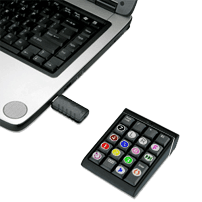
Users may find it a lot easier to use a wireless keypad to operate DSS, as wireless keypads have a small form factor to fit in your palm and are conveniently operated using just one hand.
The key assignments on the keypad is identical to the keyboard method and was already described in last section. Note that the Num Lock key (if any) on the keypad must be activated in order to have the keys function as described. Tip: while pressing the "Enter" key will repeated toggle between either players, if for some reason you lost track of who's being the current player in DSS (e.g. because you cannot see the screen from where you are), press the "8" key will force select (highlight) the left player's column or press the "9" key will force select (highlight) the right player's column. So you can avoid adding points to the wrong player because the PC screen is not viewable to you at times.
The majority of match and frame functions are provided by the buttons located at the bottom of the DSS interface. These buttons are normally hidden behind a banner graphics so if you cannot see these buttons just point your mouse over the banner and the buttons will be seen.
New Match: Creates a new match and reset match data to initial values. If an existing match is playing it will be saved to its own file.
Match Records are text files with a date stamp as their file names (e.g. 2009-11-10 12.16.17.ini) located in the "Match Profiles" folder within the DSS program folder. It records the information related to the match including match results.
Other aspects of the match/frame can be edited to suit your needs. These cover:
These parameters are further explained in the Advanced Operation section.
If you have TTS program installed you can type a message and have it read aloud through your PC speakers. Just type your message in the message box and click the speaker icon (This message box is ONLY available when you are in Edit Mode.
back to top
Most DSS's graphics elements can be replaced with your own design. The original jpg files are located at the "Xtras" folder in the DSS program directory.
To adapt with your own design simply replace the existing graphics files in the "Xtras" folder in the DSS program directory. Caution: always replace the jpg files with files with exactly the same names and dimensions, otherwise unexpected results may occur. Be careful with the use of color as improper use of colors may make the scores and other on-screen information very hard (or impossible) to read.
Many of the text fields you see on screen can be edited. Click the "Enable Edit" button and the followings will become editable (click the same button again to disable editing):
Click on these fields to edit the infirmation directly. Note that each text field should be of just one line, do not add a line break (Return) when editing text fields. Important: Always turn-off/disable Edit Mode after editing the text fields.
If you have a properly configured web cam connected to your PC you can use DSS's built-in capturer to take a snapshot of the players. Cilck the camera icon
If you already have images of the players on your hard drive, just click on the player's placeholders (on top corners of the screen) and select the appropriate image from the file browser. The images should be in the proportion of 100W x 128H pixels for optimal display. Image file formats supported are: jpg, bmp, gif and png. Users can choose to use one video camera feed and display its content in DSS's background. By embedding a live video content in DSS, audience can watch the actual match along with other match information as it is happening. To operate in Camera Mode, you must have one USB webcam/video camera connected and configured to work with your PC when DSS is running in this mode. Everytime DSS is launched you can choose between "Normal Mode" or "Camera Mode". To use live video feed, click the "Camera" mode button (read the warning on screen before proceeding with Camera Mode). By default, video is turned off when entering Camera Mode, user can toggle between live video and centre poster graphics by clicking the "Show Camera Feed" / "Show Background Image" alternatively. While in "Camera Mode", you will notice a few additional buttons that were not available in Normal Mode. They are:
Live video consumes a lot of computer processing power and the quality and smoothness depends a lot of hardware configuration and settings. You will need a beefy PC and high quality camera (with at least SVGA full motion playback) to achieve better video playback.
Users can choose to use TTS (Text to Speech) so DSS can read the score & messages to you as appropriate, or users may disable TTS so only system beep will be heard a those moments. If the TTS program is properly configured, a button called "Use System Beep" will become available at the bottom of DSS screen. Click this button to toggle the use of TTS or system beep alternatively. A speaker icon will also become available so the score can be announced when clicked (or when the . (full-stop) key is pressed). TTS can also be used to announce a custom message. Click the "Enable Edit" button to activate a white text field, type some text and click the speaker icon next to it, and the message will be read out loud. When using TTS, score is announced the moment red ball scores are entered (i.e. by pressing the [1] key, score is added to player's score and DSS will announce "one" or whatever the new break is). When a color ball is followed, there is no announcement until the operator manually press the speaker icon or press the [.] key. This is necessary because the referee needs time to pick up and re-spot the color ball and no score should be announced until the color ball is back into place. If system beep option is choosen, the announcement will be heard as system beeps, which simply signals a score is entered, or some other match activities was enagaged.
There are two ini files that configure the global or local DSS environment. These characteristics of a match/frame can be edited to suit different needs. These cover:
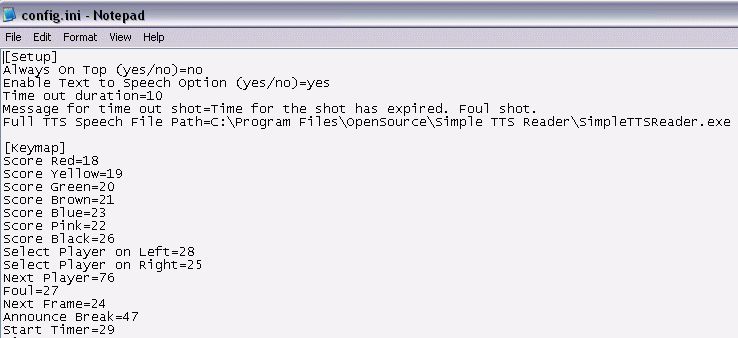
To make changes to the above, please double-click the files below and they should open in Windows Notepad. Remember to save the files after editing. If you are not sure, just leave the default settings as they are.
There is virtually no maintenace required for using DSS, from time to time users may wish to clear out the players' photos or match records. To perform these actions just look for the folders called "Match Profiles" and "Player Photos" and delete their contents. Note: Do not delete the whole folders. Just delete the contents inside them. Issue #1/1: Live Camera Feed Freezed When using camera feed, and a file selection box is opened (e.g. when browsing for a previous match), canceling the dialog box by pressing the Esc key will cause the video to freeze. Shall you have any suggestions or questions, please write to us using the contact form. back to top
Minimum System Configuration (without using live video feed)
Recommended System Configuration (using live video feed)
*While many webcams & vidoe digitizer cards are compatible with DSS, their image quality are not very decent. Users should choose those webcams which are capable of displaying at least 800x600 pixels in video mode. For better control and image quality we recommend using a DV camera which supports webcam mode (through USB), such as Sony's TRV-18 etc. These cameras provide very good image quality comparing to web cameras. back to top
Purchasing DSS DSS software is available at £29.95. Payment is conducted by Paypal therefore you can pay by Paypal account or most credit cards if you don't have a Paypal account. Paypal is safe and secure and is always our preferred choice of payment provider. Shortly upon making your purchase you will be provided with instructions of obtaining the full version of DSS.
Copyright 2009-2010 OneKaraoke.com. All rights reserved |
 Professional Quality Snooker Scoreboard Software



 . Normally the left player breaks the first frame in a match. When advancing to next frame the player with higher score wins the frame and when a new frame opens, the match status will update itself, e.g. 4(15)3 which means left player is leading 4 to 3 frame. The first player who win over half of the frames win the matvh.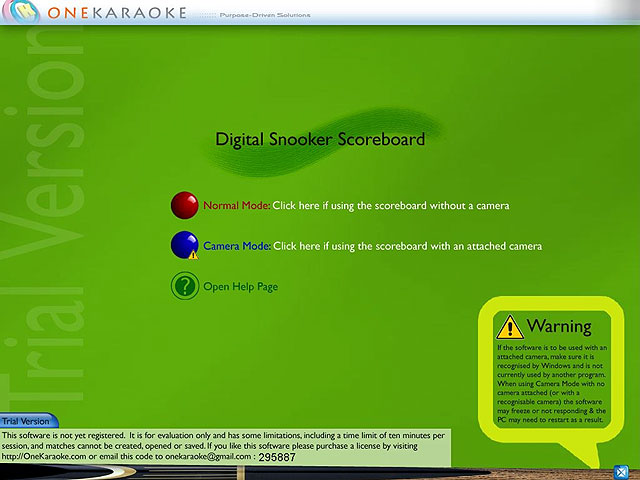
 the the first frame by default. If it is the Right player to break the first frame, click
  button below his column to mark him as the person who broke the frame.
 button. In edit mode, you can edit the name(s) of the player(s), the scores, the match status, titles of the match etc.
 button and his opponent column will be visible and click a ball to add the correct points to the opponent's score. If the foul button is accidentally clicked, just click it again to cancel. It is posible to foul multiple times on the same player - just be alerted that the player to receive the points is currently active.
 button before adding points received through Free Ball. When Free Ball button is engaged it assumes the ball (if potted) will be returned to the table and scores will be calculated without affecting the remaining score values.
 button and the remaining time (in seconds) will be displayed on the button. Distinct beep sounds will be heard during the last 5 seconds and when reaching 0 sec the foul function activates. Click a
  No voice is produced if break is currently zero.
 button on screen's bottom) as long as the scores are not equal, on next frame the scores will be reset and person to break will have the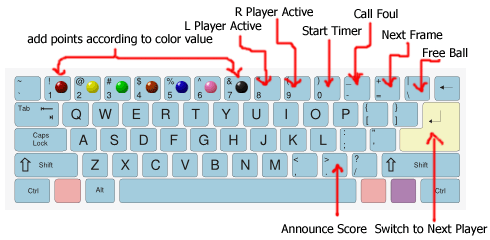









 under respective column to take the snap shot.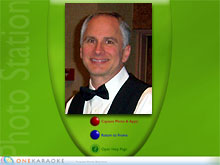
 Full Screen Icon: click the icon to enter full video mode and have the camera feed fills up almost the entire screen.